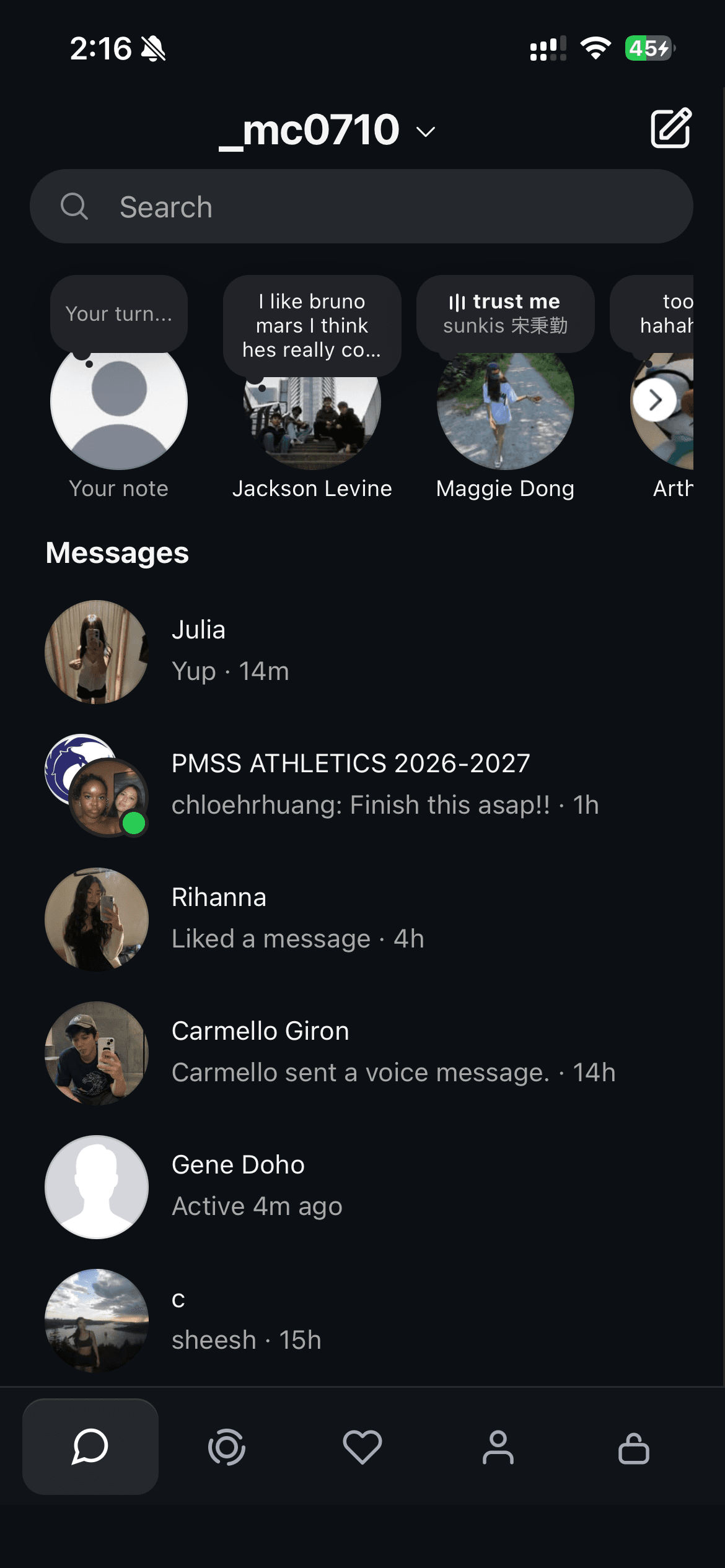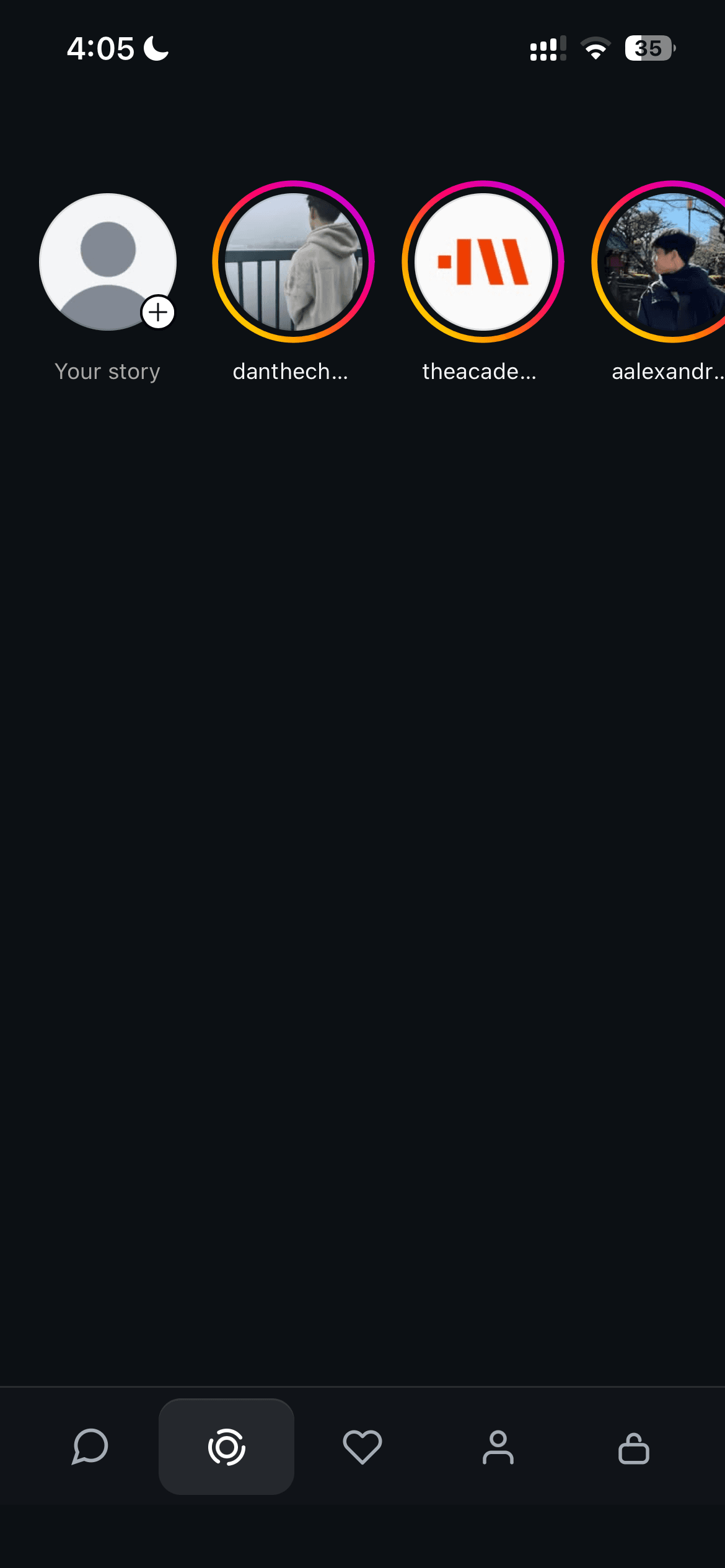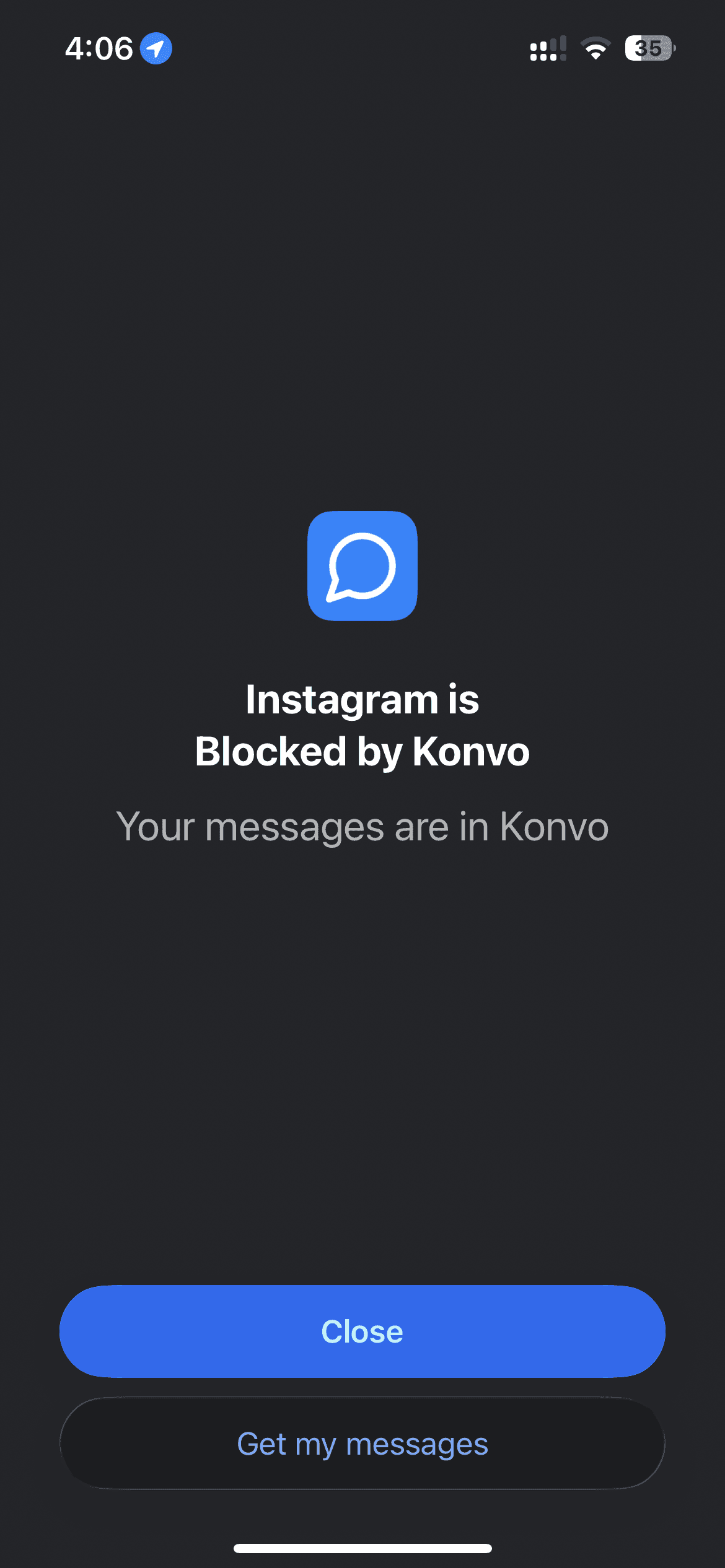
If you want Instagram messages without the Reels browsing screen, you can use Konvo for your inbox and block the separate Instagram app through Screen Time. You keep the same Instagram account. If you only want to reduce time spent in Instagram, Apple’s App Limits provide a different, free option. Here is what each approach changes.
View Konvo on the App StoreChoose what you want to block
Hiding Reels in a separate app and limiting your time in Instagram solve different problems. Konvo hides the feed, Reels, and Explore inside Konvo while keeping DMs, group chats, and friends’ Stories available. Access requires a subscription; review the current local price and any trial offer before purchasing.
Screen Time App Limits apply a daily allowance to the selected app. They do not turn Instagram into a messages-only app. Opening the Instagram inbox in Safari is another way to reach your chats, but an inbox bookmark by itself does not remove the feed or Reels from the website.
This guide is written by Konvo. Choose the approach that fits how you want to use Instagram, including the free options if you do not need a separate inbox app.
Set up an inbox without the Reels feed
Start with a working inbox before blocking or removing the Instagram app. Your friends can keep sending messages from Instagram; they do not need a new account or a different messaging app.
- Download Konvo from its App Store listing and open it on your iPhone.
- Complete setup and review the subscription price, billing period, and any trial terms.
- Sign in on Instagram’s sign-in page inside Konvo. Complete any account or two-factor authentication checks Instagram requests.
- Open an existing conversation from the Messages tab and check that it loads.
- Use the Stories tab when you want to see a friend’s updates, then return to Messages.
Block the Instagram app while keeping your chats
Konvo’s interface does not change the separate Instagram app. If you leave that app accessible, its feed and Reels are still available there. On iPhone, you can use Konvo’s Screen Time controls to block opening it.
- Open Konvo’s lock tab and allow Screen Time access when prompted.
- Choose the Instagram app itself in the app picker. Leave instagram.com and broad social categories unselected so Konvo can still load the inbox.
- Enable blocking, open Instagram to check the block, then return to Konvo and confirm your messages still load.
Use free alternatives if a time limit is enough
For a daily Instagram allowance, open iPhone Settings, choose Screen Time, then App Limits. Add a limit for Instagram and choose the time allowance you want. This limits the app as a whole, including time spent in DMs; it does not separately remove Reels.
For browser access, open Instagram’s website in Safari, sign in, and open Messages. Saving the inbox as a bookmark can shorten the route back to your chats. It is a shortcut, not a Reels blocker: other Instagram screens remain accessible in the browser.
Check the limits before choosing
Konvo uses Instagram’s website inside its app. Loading still depends on your connection and Instagram’s service, and an Instagram account check can interrupt sign-in. It is not an offline inbox or an Instagram setting that changes every device you use.
The Screen Time steps above are for iPhone. For Konvo’s current Android availability, use the Android link on the homepage rather than assuming these iPhone instructions also apply there.
You do not need to delete your Instagram account to avoid Reels. Keep that account active if you want to continue using its messages and Stories.