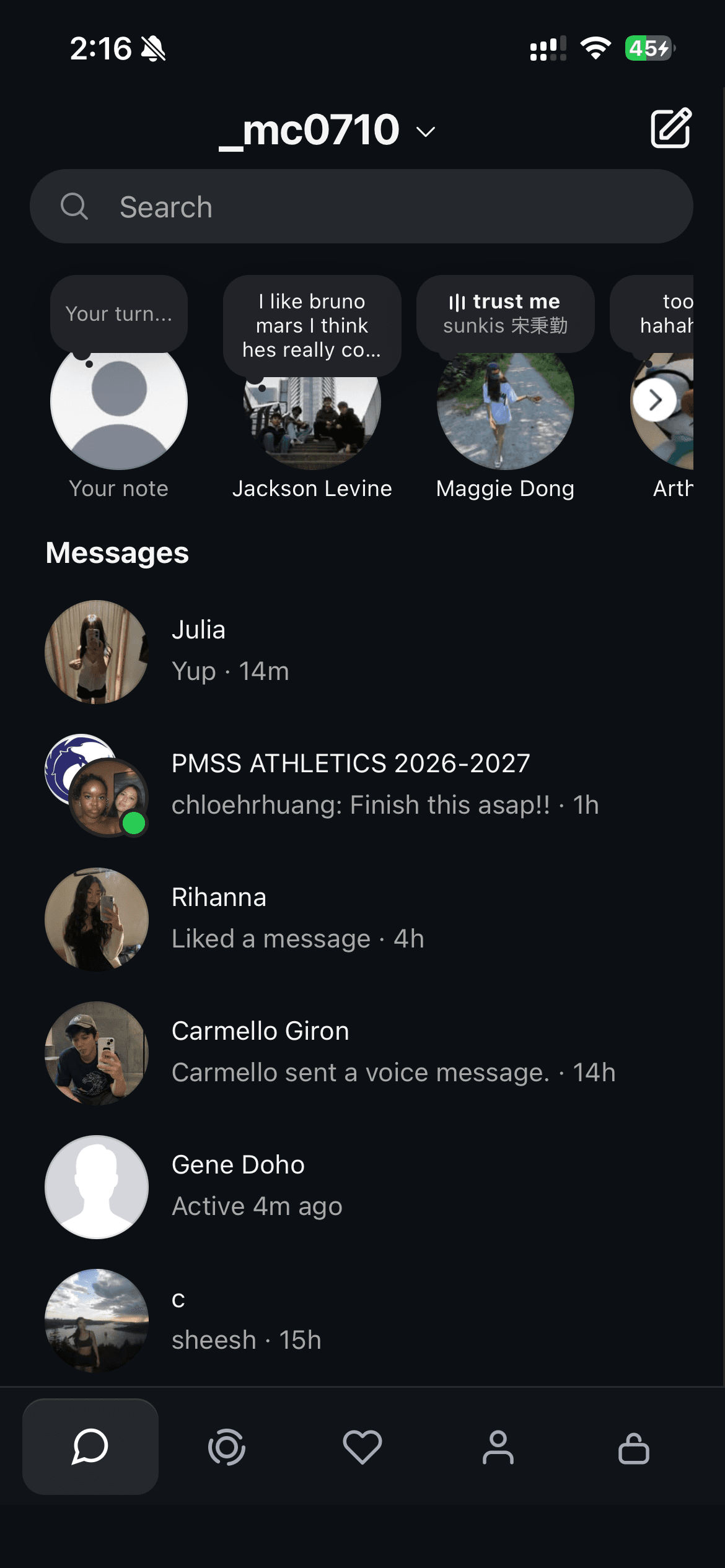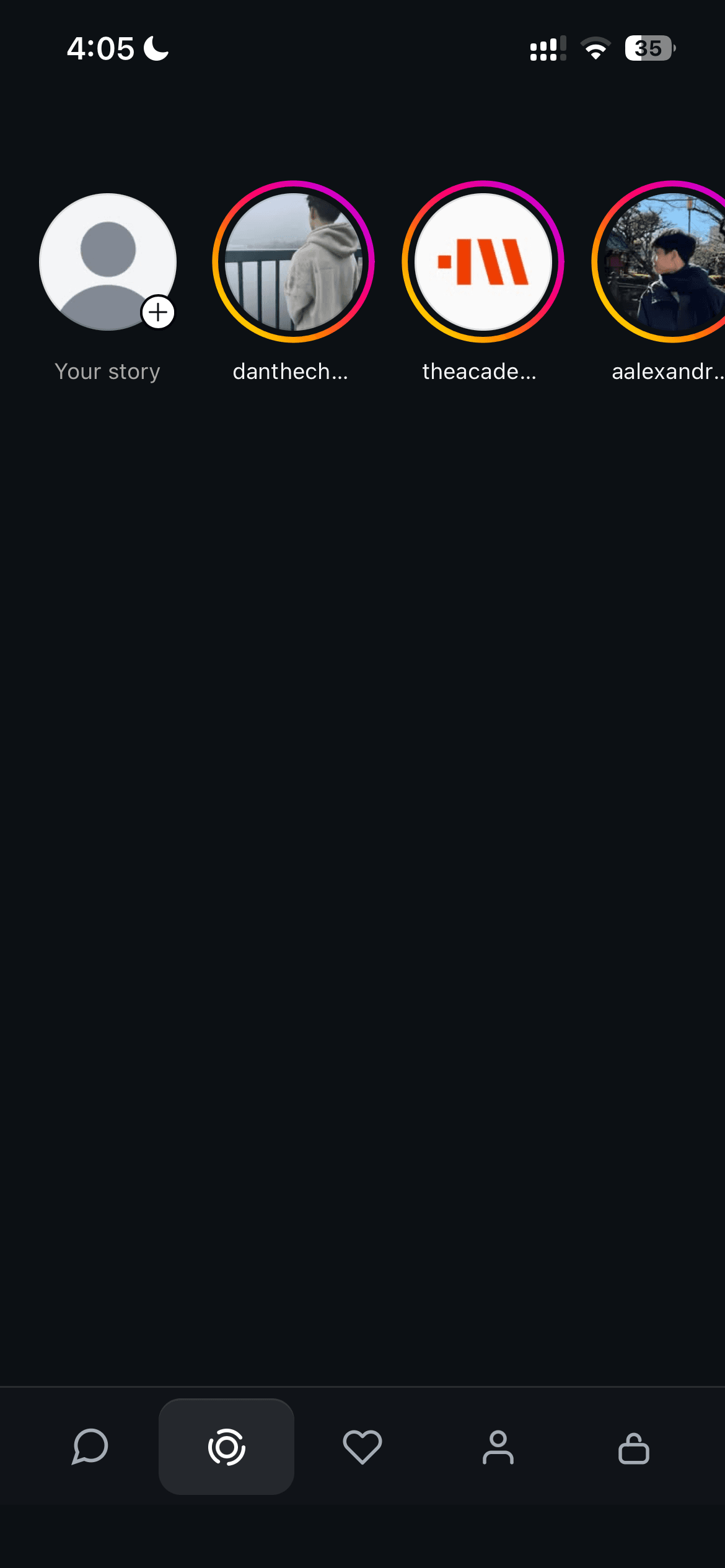
You can block the Instagram app on iPhone and keep using Instagram messages in Konvo. Sign in to Konvo first, then use its Screen Time controls to block only the separate Instagram app.
View Konvo on the App StoreCheck your messages before blocking Instagram
Open Konvo and sign in to the Instagram account you want to use. Confirm that your inbox loads and that you can open a conversation. Konvo requires a subscription; the app shows the available plans during setup.
This check gives you a working way to reach your messages before you block the original app. Your friends can continue using Instagram and messaging you in the same chats.
Turn on Instagram blocking in Konvo
Blocking uses iOS Screen Time permission. Follow these steps on your iPhone:
- Open the lock tab in Konvo, or continue to the Screen Time step during setup.
- Allow Screen Time access when iOS asks. Follow any device authentication prompt.
- In the app picker, select the Instagram app itself. Do not select instagram.com or the entire social category.
- Finish setup and check that blocking is enabled in Konvo.
- Open the Instagram app from your Home Screen to test the block.
Open your messages from the block screen
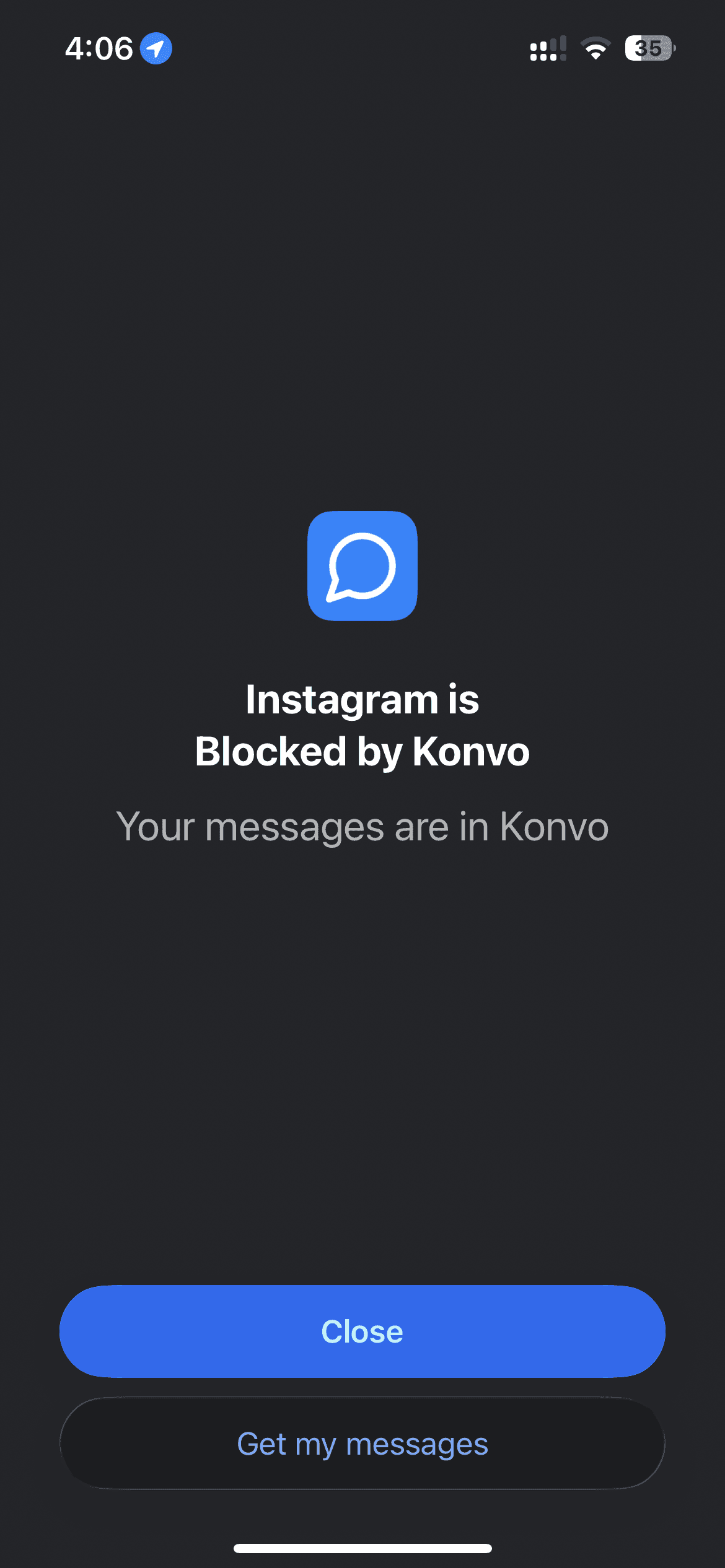
When you open the blocked app, you should see “Instagram is Blocked by Konvo” and “Your messages are in Konvo.” The screenshot above shows this screen.
Use “Get my messages” or open Konvo directly. Select the Messages tab and open a conversation to confirm that you can still read and reply.
Blocking the Instagram app does not delete your Instagram account. Your messages remain in that account. You can also use Konvo’s Stories tab while the separate app is blocked.
App blocking and iPhone App Limits
Apple’s built-in App Limits let you set a daily time allowance for an app or category. An allowance applies to the selected app; it does not provide a separate Instagram inbox.
With Konvo, you read messages in a separate app and block the original Instagram app through Screen Time. Select the Instagram app specifically so the block does not also cover the website used for your inbox.
For Apple’s own App Limits controls, open Settings, then Screen Time, then App Limits. Apple’s guide explains how to choose apps and set their daily allowance.
Does blocking Instagram delete your account?
No. This setup blocks opening the separate Instagram app on your iPhone; it does not delete or deactivate your Instagram account. Your account needs to stay active so you can use its messages in Konvo.
The scope of the block matters. Selecting Instagram’s app leaves the website available for Konvo’s inbox. Selecting the website or an entire category can also block the route Konvo needs to load your chats.
If Instagram still opens or messages stop loading
If Instagram still opens normally, return to Konvo’s lock tab. Check that Screen Time access is allowed, the Instagram app is selected, and blocking is enabled. Test the Instagram app again after making changes.
If your inbox also stops loading in Konvo, review the picker selection. Remove any website or broad category selection and select only the Instagram app. Then check your connection and Instagram sign-in.
If neither check resolves the problem, use the contact form. Include your iPhone model, iOS version, and whether the issue is an unblocked app or an inbox that will not load.